New/Free
Label Prep tool
Drop in your label file (PDF, Adobe Illustrator, Photoshop, PNG or JPG) and download the transparent PNG your Lite bottle shot needs.

Lite needs one file: a transparent PNG of your label, cropped to its shape. Make it yourself in your browser right now, or send your file to our team and get it back by email within 2 business days. Both are free, with no order required.
Drop in your label file (PDF, Adobe Illustrator, Photoshop, PNG or JPG) and download the transparent PNG your Lite bottle shot needs.
Upload your label file through the form above. We accept PDF, Adobe Illustrator (.ai file), EPS, PNG, JPG and most common design formats. Not sure which path fits? Try the Label Prep tool first. It tells you what it found the moment it opens your file.
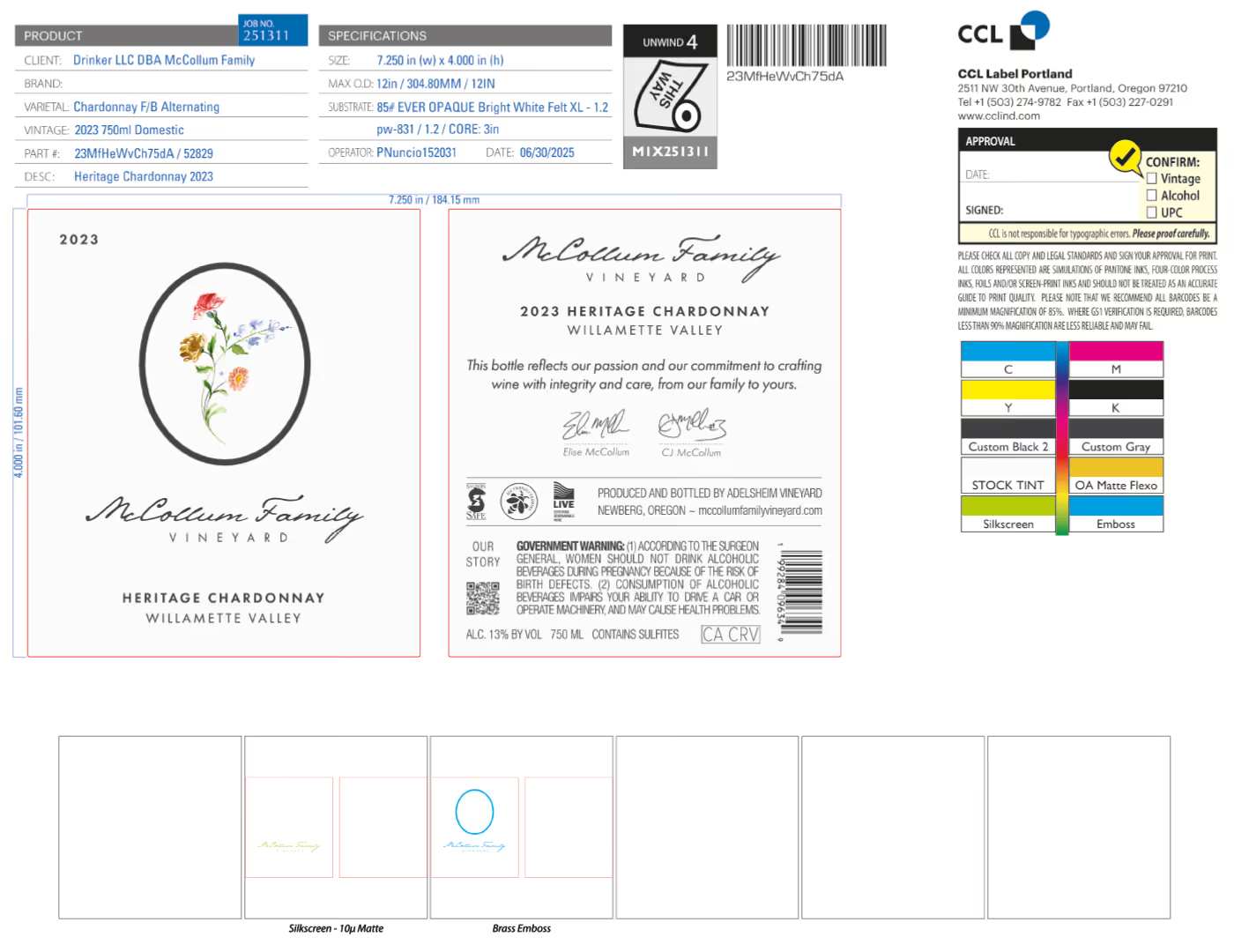
Our team isolates your label artwork and removes the background. You get a high-resolution PNG cropped to the exact shape of your label, transparent outside the edges, with your label's paper color kept. The service is a cut out only. For foil or emboss accents, use the Label Prep tool.
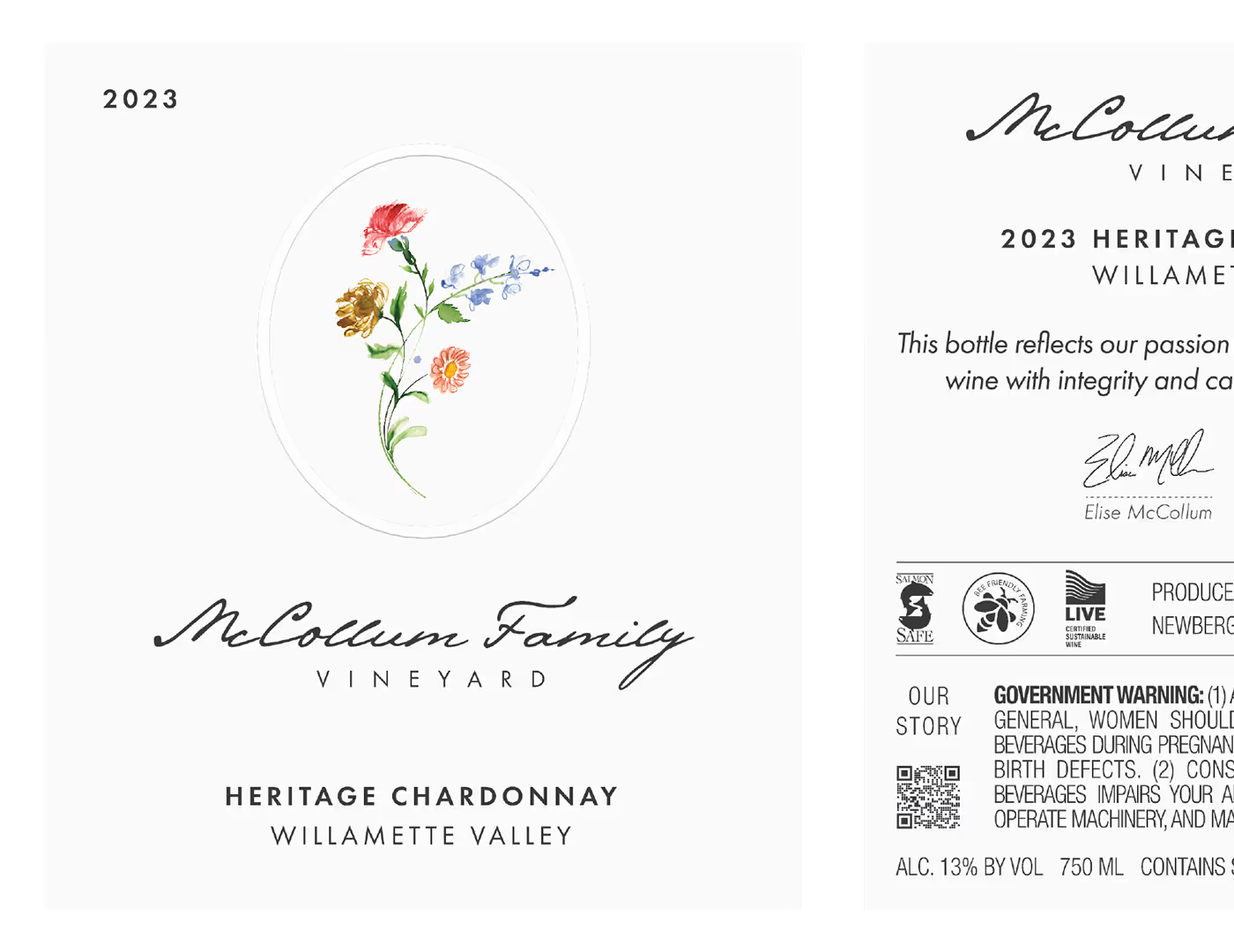
Within 2 business days, you'll receive your prepared label file by email, ready to upload directly into your Outshinery Lite bottle shot order. No back and forth, no guesswork about file specs.
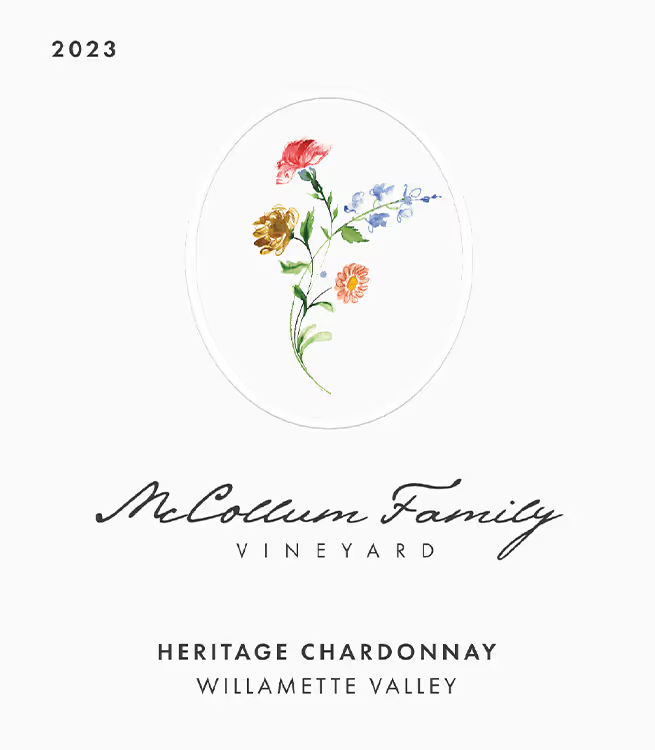
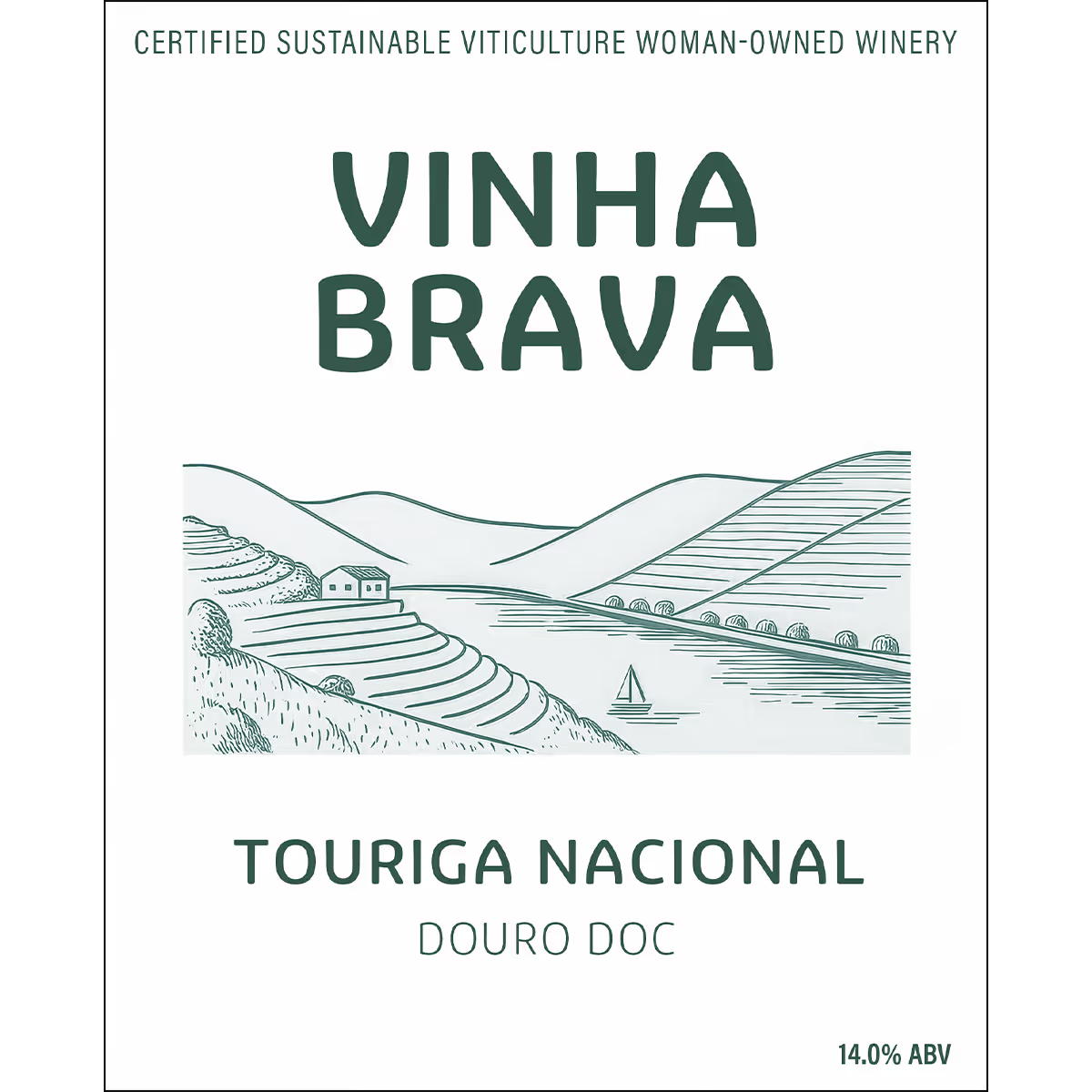
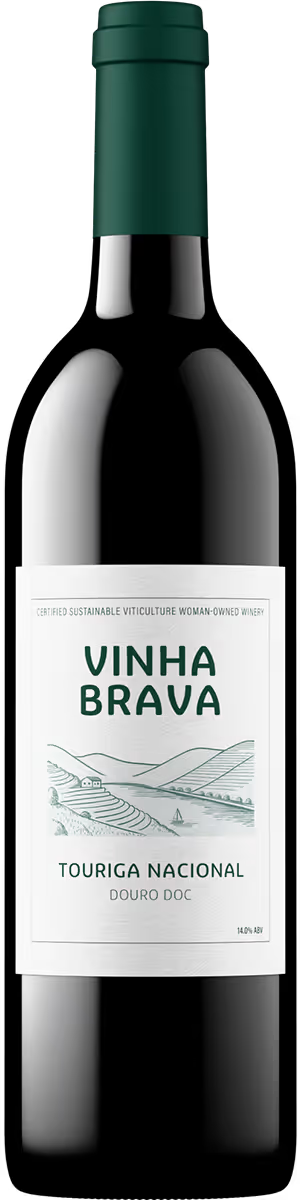
The label is cropped to its shape. The area outside the edges is transparent (checkerboard). The white paper is kept as-is because that's what your real label looks like.
Rectangular label cut to the edge? No blank space needed outside it.
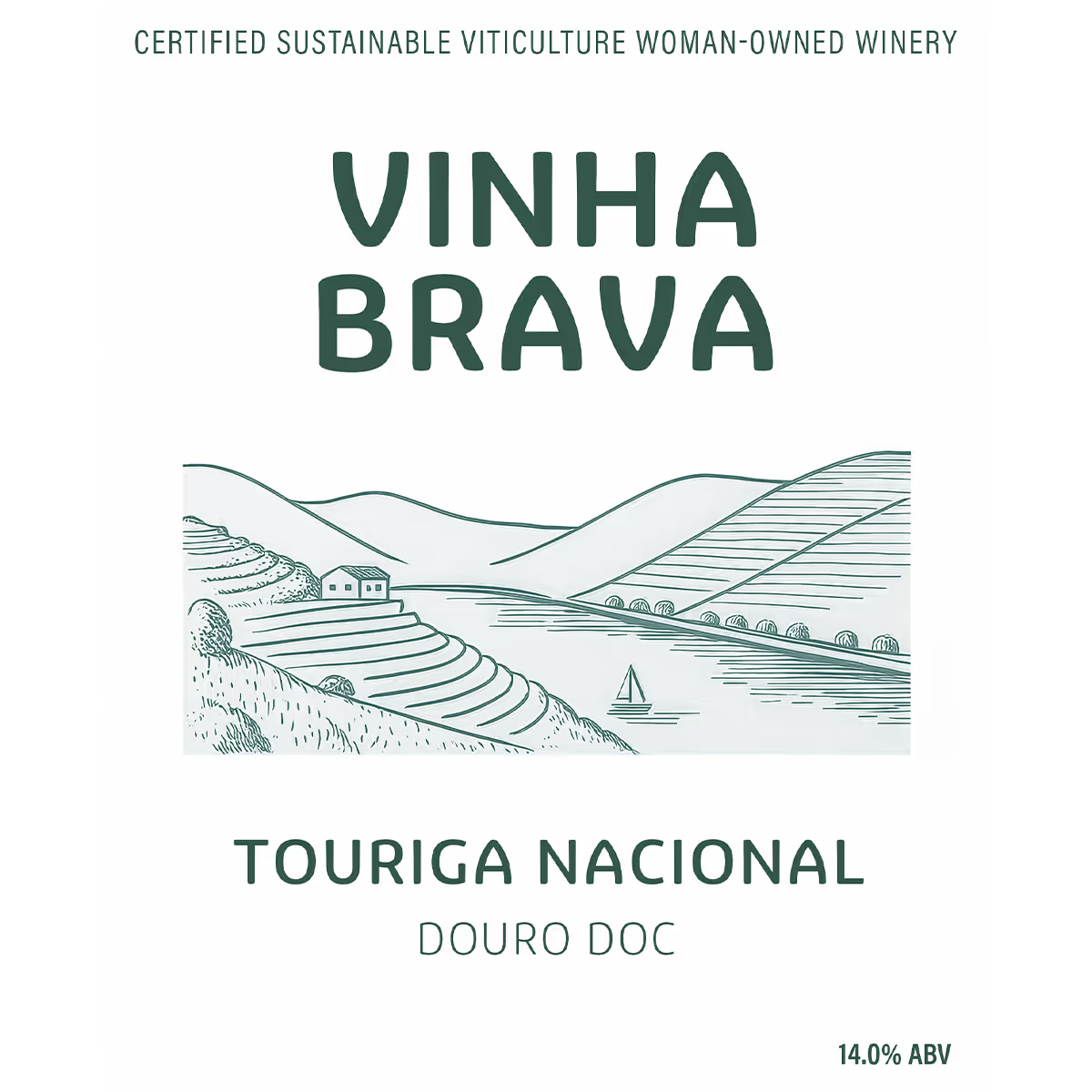
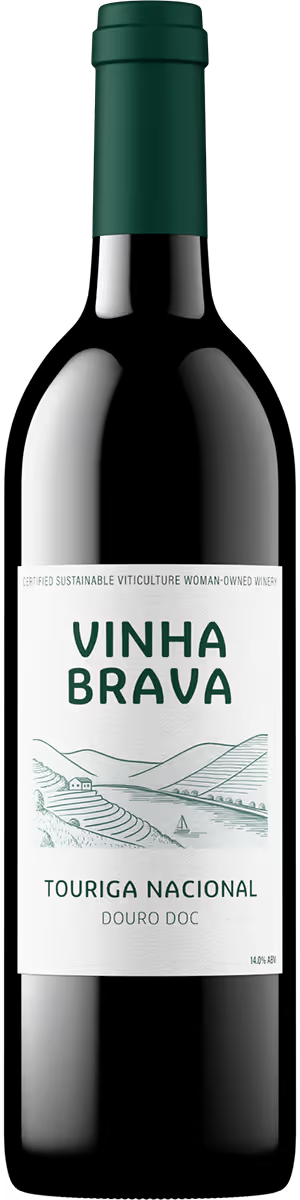
There's no paper. The ink is printed directly onto the glass. Everything except the printed elements is transparent, so the glass shows through.
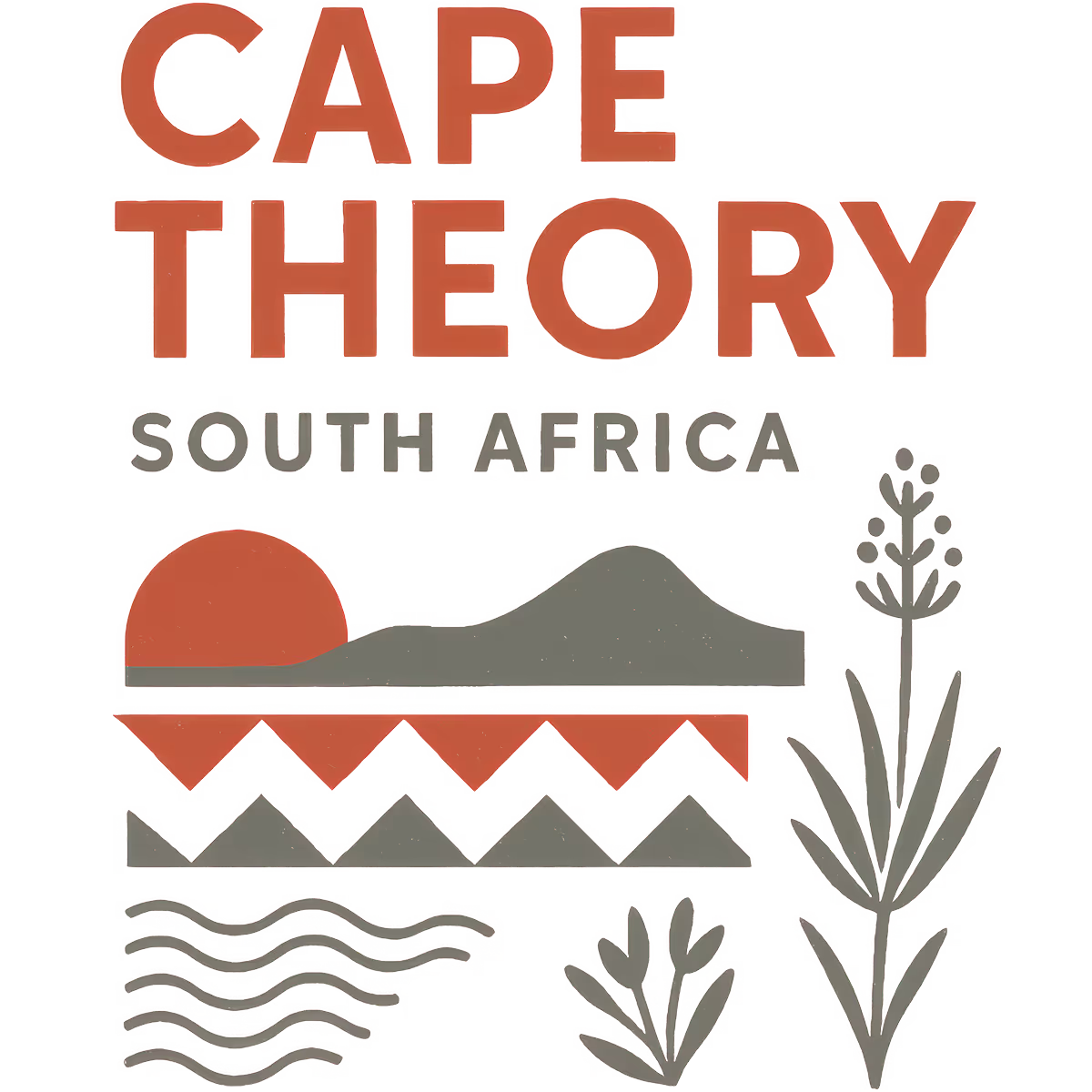
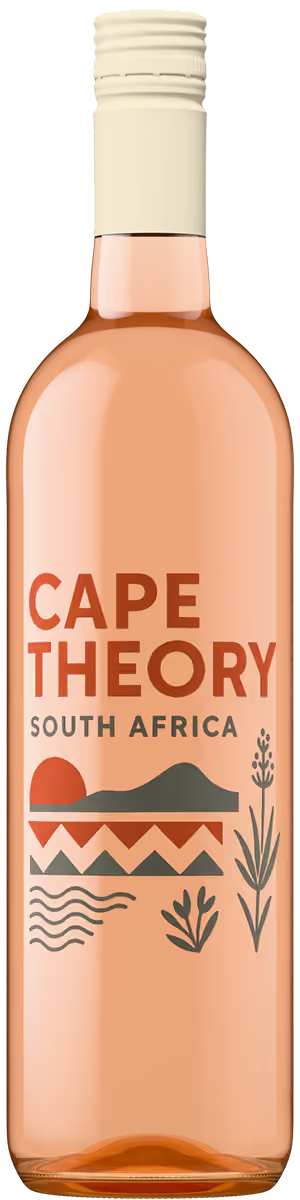
The white paper was deleted, making the whole label transparent. Now it looks like a silkscreen instead of a paper label. The text floats on glass.
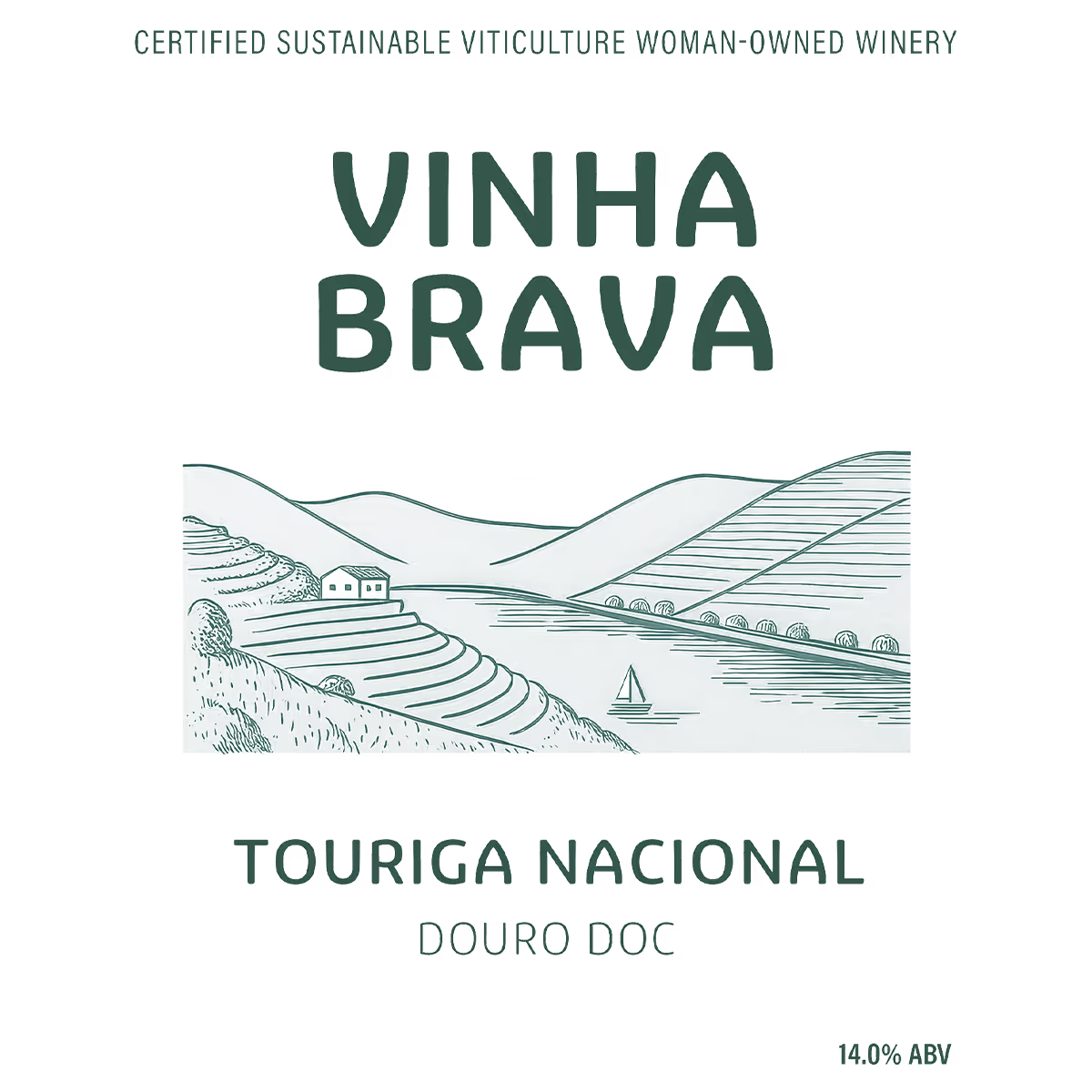
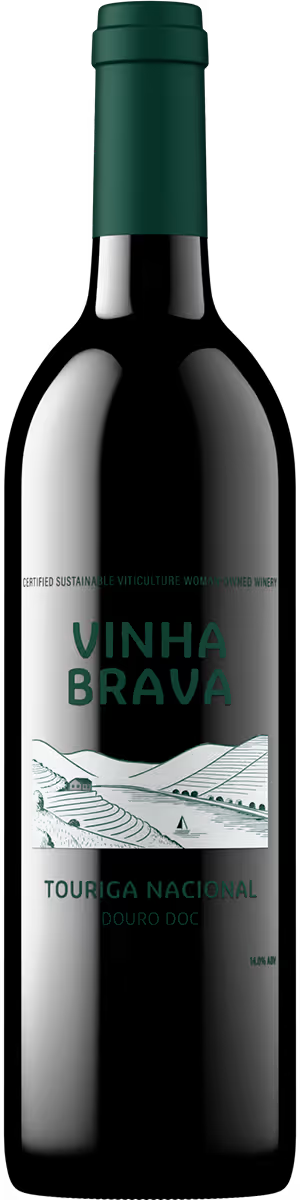
The label file has a solid white rectangle behind it. This creates the "white box" effect on the bottle because the system can't tell where the label ends and the background begins.